Monday, September 19, 2011

Check Out Our Nine New Advanced Interactions!

Ultra, Professional Premium, and Mobile Ultra users can now take advantage of nine new advanced interaction pages.

To see the new advanced interaction pages on an existing course, you must update the style files. To do this, open your course in the authoring tool. Click on the "Edit Course Settings" button at the top of the screen.

Next, click on the course style, then check the box next to "Update Style Files."


Click on "Update Course."


Make sure you clear your cache and you should see the new advanced interaction pages option appear when you add a new page.


You can read a description of each of our new Advanced Interaction pages on this blog post. Additional information on the settings and how to fill out each field is given on our wiki.

Sunday, September 18, 2011

New Advanced Interactions for Professional Premium Users

If you are an Ultra, Professional Premium, or Mobile Ultra level user, you can now take advantage of nine new Advanced Interaction page types that have been released for Unison. Descriptions and screen shots of the new page types are given below.

Note: If you currently don't have access to these page types, but would like to, you will need to upgrade to Professional Premium level. Email us at sales@rapidintake.com for any questions regarding your current level or upgrading.

9 New Advanced Interaction Pages
You can read a description about each of our new Advanced Interaction pages on this blog post. Additional information on the settings and how to fill out each field is given on our wiki.

Case Study
The Case Study interaction allows you to present the learner with a scenario and a blank field to type in an essay type response. The scenario can include an image and an audio file. Use the table below to fill out the form according to how you want the page to display.

Categories
In this timed interaction, learners will be given terms to drag and drop in the correct category. You can have up to four categories, with up to eight terms in each.

Concentric Circles
In this interaction, the learner will be able to explore different layers of a circle. Each layer will have a title and a pop-up box with a description will appear when the learner clicks on the layer.

General Matching
In this timed interaction, the learner will match terms to their definitions. After the learner drags the term to the definition, a connecting line will appear that will indicate whether the response is correct or not. A red line indicates an incorrect response. A green line indicates a correct response.

Spin the Wheel
This interaction allows the learner to spin a wheel and answer the questions that appear. There are six categories on the wheel and up to five questions in each category.

After spinning the wheel, the learner will be posed with a question and multiple answers to choose from. The learner will be timed during each question and will have to choose the answer before time runs out. After selecting an answer and submitting, the learner will view a pop-up box with feedback in it. The score will be shown at the top of the screen.

After finishing the game, the learner will be able to view each question, their answer, the correct answer, the feedback, the final score, and the time spent on each question.


Survey

This interaction allows you to ask questions to survey your learners. You have the option of giving your learners a scale of 1-5 or a blank text field to respond to the questions. You can set up the results to be emailed to you.


Venn Diagram

This interaction allows you to show the similarities and differences between two or three different categories or items.


Word Game Non-Timed
This interaction allows you to ask your learner a series of questions and have your learner type in a response into a field. You have up to eight questions and can give feedback on each question.

Word Game Timed
This timed interaction allows you to ask your learner a series of questions and have your learner type in a response into a field. You have up to eight questions and can enter in a time limit and a point value for each question.

Wednesday, September 14, 2011

Resizing Your Course

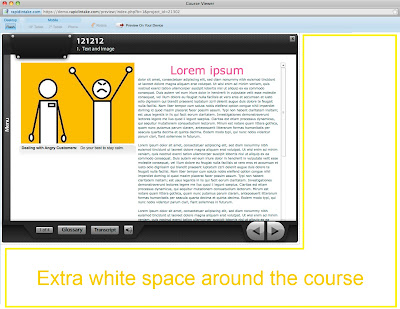
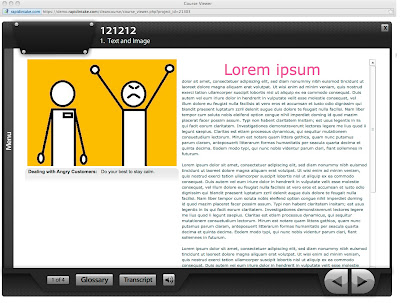
Have you or your learners noticed that often times the course does not take up the entire screen? Are you tired of seeing extra white space around the course?

White Space Before:


Full Screen After:
You can easily stretch your course to full-screen by making simple changes to one of the course files.

How?
  1. The course first has to be finished and deployed. Locate the zipped file on your computer of the course you would like to make full screen.

  2. Unzip the file.

  3. Open the course folder and look for the file called "ie_activecontent_fix.js"

  4. Open the file in a text editor, like Notepad++ or Textmate (not Microsoft Word). Locate the dimensions for width and height. Your course will look similar to the example below:

  5. Change the width and the height in both places to "100%." Make sure you only delete the numbers in the quotation marks, not anything else.

  6. Save the changes you have made, zip up the course, and you are ready to publish the course to your LMS!
Note: In some cases making adjustments to a course size will cause pixelization of page images. Most courses will adapt without problem, but some courses will reveal pixelated images on large monitors.

Monday, August 29, 2011

Incorporating Audio into a PowerPoint Presentation

Any time you convert a PowerPoint in Unison you have to check your PowerPoint presentation settings to make sure that all the components of your original presentation get converted when you upload it to Unison. Converting presentations with audio can be extra tricky. Here are two ways to incorporate audio in a way that will convert without problems:

  1. Importing audio clips: If the audio you want to incorporate is prerecorded, follow the steps below to ensure that the audio files are correctly embedded into your presentation.
  2. Narrating your presentation: This is a great option if you want to record yourself narrating the PowerPoint.

How to Import Audio Clips

  1. First of all, make sure the file is in.wav format. PowerPoint will not embed .mp3 files.
  2. Browse for your .wav audio file.
  3. Click Insert, Sound, and then select “Sound from File.”
  4. Make sure that the sounds settings are set to play “Automatically.”
  5. Check the Max Sound File Size setting is set to 50000K the maximum allowable size. This will ensure that the audio file is actually embedded, and not just linked, to your presentation. Linked audio files are stored outside of the presentation and are lost during conversion in Unison.

Where to look for the Max Sound File:

PowerPoint 2007 (PC version): this setting is found by selecting the icon for your audio file on your PowerPoint page, and adjusting the Max Sound File Size located at the top of the PowerPoint window.

PowerPoint 2003 (PC version): this setting is found by selecting the icon for your audio file on your PowerPoint page, selecting Tools; Options, and under the General tab, adjusting the number where it says “Link sounds with file size great than”

On a Mac, you adjust this setting by entering the PowerPoint Preferences, and under the General tab, change the number where it says “Link sounds with file size greater than:”

By default these amounts should be set to 100. It is suggested that you set this number to the 50000 maximum size to ensure your files embed properly.

Powerpoint 2010 for Windows and Powerpoint 2011 for Mac do not require you to change the file size, this is done automatically for you after bringing the audio file into the ppt slide. As long as the audio file is in a .wav format, just drag and drop.

How to Narrate a PowerPoint

  1. After you have created all the slides, go to the Slide Show tab and click on “Record Slide Show.”
  2. Click on “Set Microphone Level” to adjust microphone settings. Then hit OK.
  3. Click through your presentation, narrating like you would for a live audience.
  4. When you are finished recording, push the ESC key and when the prompt appears asking you if you want to save the timings, hit YES.

Friday, August 26, 2011

Updates to PowerPoint Converter

We noticed that with our previous PowerPoint converter there was no way to completely disable the click when the presentation played in a Unison course. If a learner clicked anywhere on the slide during the presentation, the animations would all advance and the audio would skip or loop.

The PowerPoint converter has been updated to completely disable the click for the learner during the presentation in the course, which will keep the animations and audio from malfunctioning.

What settings should I use when I create new PowerPoint presentations?
Now that the click is disabled for learners during the presentation, you will need to make sure that all your animations and audio files are set to play automatically in your original PowerPoint.

Animation Settings: Set all animations to either "Play with Previous" or "Play After Previous."

Audio Settings: Set all audio files to play "Automatically."

What about the PowerPoints I uploaded and converted previously?
If you have older presentations in Unison courses that were uploaded and converted prior to August 25, 2011, and you want take advantage of the new click disabled setting, you will need to delete the old presentations from your media manager and re-upload the original PowerPoint presentation to Unison. Re-uploading it with the new converter will ensure that the click is disabled during the presentation. If you need a reminder on how to upload a PowerPoint Presentation, please read this blog post.


Thursday, August 25, 2011

Issue Management: Grid vs. Row View


The newest release of Unison provides a new way of viewing the issues that you are managing in your course. To manage the issues for a course and witness the new views for yourself, log in to Unison, click on one of your projects, go to "Manage Issues" and you will see these two icons to the right above the list of your issues:

This blog post will discuss the advantages of viewing the issues in "Grid" format. For more information on the features of the newest Unison release please read this blog post.


Advantages of Grid View

Using the “Grid” allows you to see a lot more information about the issue and to sort the issues in different ways.

When you first enter the “Grid” view, you may have a hard time seeing all the data because there are many narrow columns.


Widening the Columns

If you can’t read all the information in a column, just hover over the edge of the column until you see the symbol with the lines and arrows. This will allow you to click and pull the edge of the column over to make it wider.


Viewing Less (or More) Columns

Still overwhelmed by the amount of information you are looking at? You can go in and take away some of the columns from the view screen. This will make the remaining columns wider and easier to read.

1. Hover over a column heading until it turns blue and you see an arrow on the right side.

2. Click on the arrow to pull down the menu, then hover over the word “Columns.” You will see a list of all the column headings next to check boxes.

3. Click on a box to uncheck it. This column will now be removed from your view.


Sorting Column Information

You can now sort the information in each column by hovering over the column, clicking on the downward arrow, and clicking on “Sort Ascending” or “Sort Descending.”

Sorting the information in the “page” column will allow you view issues grouped by page. For example, all issues on page 1 will be grouped together, so you can go in and make all the necessary edits to page 1 that are necessary at the same time. Sorting the information in the “Priority” column will group the issues by priority. You can then go and start working on the group of issues at the highest priority first.

Important New Features for Unison Users


We have updated Unison to include the following new features:

  • Enhanced Issue Tracking: We have upgraded the issue management system to include a color indicator on the "My Projects" tab, making it quick and easy to identify how many open, verify, and closed issues you have been assigned. There are now two ways to view the issues, and even a way to make an issue "private."
  • Customized Reminders: Administrators now have the ability to email customized reminders to team members.
You can read more about these new features below:

Enhanced Issue Tracking
Assigned Issues
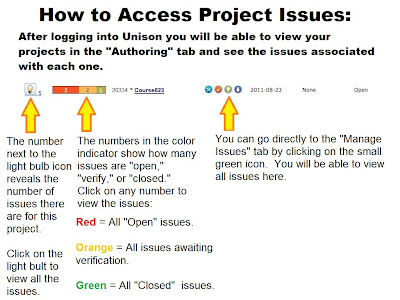
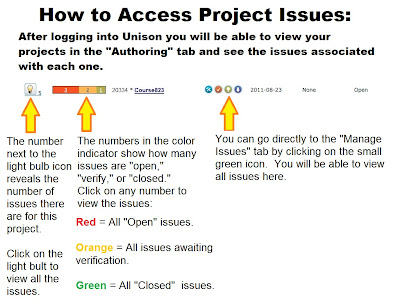
When you open the "My Projects" tab, you will now be able to just glance at the issue color indicator to see how many open, verify, and closed tickets have been assigned to you on each project.


Viewing the Issues
If you want to view the complete list of all issues, click on the light bulb icon. If you want to view only the open issues, click on the number in red on the color indicator. If you want to view issues that need to be verified, click on the number in yellow on the color indicator. If you need to view issues that have been closed, click on the number in green on the color indicator.

There are also two ways to view the issues. Once you have clicked on the issues (either the light bulb icon or from the color indicator), you can change the way you view the list of issues by clicking on the row or grid icons.


View as Row

View as Grid


To read more information about the advantages of viewing the issues in grid form, please click the link to read the "Grid vs Row" blog post.

And, as always, you can click on the "Download Excel" link to down load the list of issues as an Excel spreadsheet.

Making Issues Private
You can make new and existing issues private (hidden from reviewers) by going to the "Manage Issues" link under the "Authoring" tab. Click on "Add a New Issue" (or click on edit for an existing issue) and check the box next to "Private Note" under the issue text field.


Adding Customized Reminders
To send a customized reminder for an existing course, click on the "Admin" tab and then click on the "View/Update Project" Link.

Locate the project and then click on the project name. You will now be able to view the "Project Information" and "Optional" expanding menu (as illustrated in the image to the left.

Make sure that your project has a due date, and then select the team members to whom you want to send an email reminder, select the day, and type in a personalized reminder message. Your team members will receive this reminder by email.