Tuesday, November 15, 2011

Changing the Background on the Visual Layout Page

We have had some customers ask if it is possible to change the color of the background, or canvas, of the new visual layout page.


There is not currently a way to change the color of the canvas, but there is a way to import an image from the media manager to cover the canvas.

HOW?

1.  Simply insert an image from your media manager. In this example, I used a small blue square.
2.  Use the handles around the image to re-size and stretch the image over the canvas.
Note:  If you have other media elements on the page already, make sure you click on the "Bring to Back" button so that the "background" image is layered behind all the other elements.
3.  You may have to change the default text box settings (including the transparency of the text box background or the text color) to make it easier to see.

However, if you are using an image that you don't want to distort by stretching it to fit the canvas, you will need to look up the staging size for the course style you are using and make an image to fit those specifications.

1.  The staging area specifications of the style you are using are displayed at the top center of the screen in the authoring tool.

2.  Use an image editing program, such as Photoshop (or even Paint), to size the image to the right specifications.  
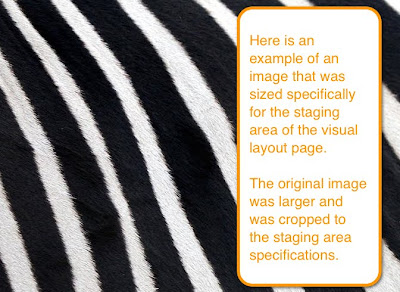
3.  Upload the image to your media manager and your course.  
                 

Wednesday, November 2, 2011

Youtube Videos in Flash Courses

Have you ever wanted to link a Youtube video to your Flash course?

Here's how:
1. Add an external SWF page to your course. This type of page allows external files.
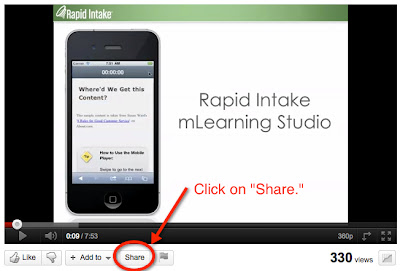
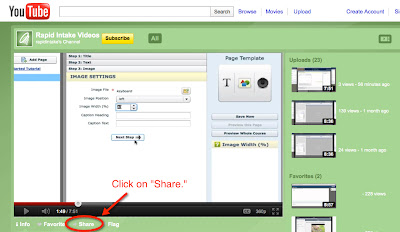
2. Locate the video you want to use in Youtube. Click on the "Share" button below the video.


3. Click on "Embed" and check the box that says "Use old embed code." You will see a long link. You don't need the entire link. Just copy and paste the part starting with http and ending with the question mark. You will need to type rel=0 (zero) after the question mark. Example: http://www.youtube.com/v/-fgpDOOWAHc?rel=0


4. Copy the necessary section of the embed code. Note: If there is anything extra (such as a quotation mark), the link won't work.


5. Double click on the "Flash SWF File" default text to activate the field.

6. Paste in the section of the embed code.
When you preview the course, you will be able to view the Youtube video playing from the external SWF page in your course.

To learn how to embed a Youtube video in a mobile course, read this post.

Youtube Videos in Mobile Courses

Have you ever wanted to link a Youtube video to your mobile course?
Now you can!
Here's how:
1. First, locate the video you want to use from Youtube.com.
2. Click on the "Share" link below the video.

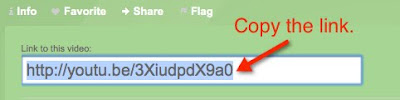
3. Copy the link to the video

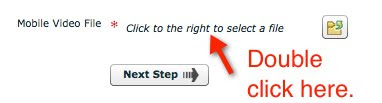
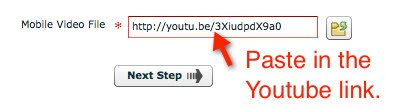
4. After opening up your mobile course in the authoring tool, double click on the default text in the mobile video file field to activate it.

5. Paste the link into the activated field.
When you preview the course, you will be able to view the Youtube video playing from the video page in your course.

To learn how to embed a Youtube video to a Flash course, check out this post.

Friday, October 28, 2011

New Mobile Page Types

After receiving requests for audio capability with mobile courses, we are proud to offer new page types to our mLearning users:
  • Text, Image, and Audio
  • Text and Audio
  • Image and Audio
Similar to our other page types, simply fill in the blanks, select the files you want, and the page is ready!

In addition to the new pages incorporating audio, we have also implemented:
  • Definitions Page
  • New Quiz Question Type: Multiple Correct
The Definitions Page is two interactions in one: a review and a practice. First, learners are able to review terms with their definitions. In the practice portion of the interaction the learners must make matches by tapping the term and then tapping the definition.

Review:
Practice:

The new quiz question type allows you to provide your learner with a multiple choice question that has more than one correct answer.

***Note on audio: Audio is unable to be set to play automatically. In the audio step settings, you will see a check box for "Auto Play," but when your learners navigates to the page, they will still have to hit the play button to access the audio.

Friday, September 30, 2011

Changing Video Size in Unison Courses

Our customers often notice that videos that are uploaded to Unison courses always appear the same size (and usually not the original size) in courses.


Why?
Unison allows you to upload videos in .flv, .mov, .avi, or .wmv format. All video types (except .flv) must be converted to .flv before they can be used in courses. When this conversion occurs, Unison changes the size of the video to fit in the video page template.

How to Change the Size
By uploading a video that is already the size you want in .flv format, you can bypass the conversion process. This allows you to incorporate a video in it's original size, or you could design a video to take up the entire staging area of the video template.

Here is how:
1. Course Style Size: You will need to look up the staging area dimensions of the course style you are using so you know what size your video needs to be. You can look this up on our wiki. Look up the name of the style you are using for the course. The staging area is the number in parenthesis.

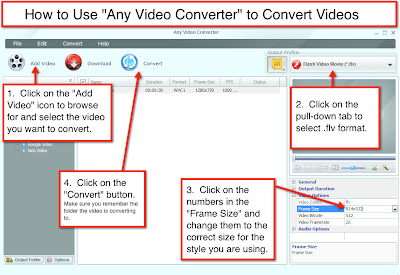
2. Video Size: Now that you know the dimensions for the staging area, you can change your video dimensions to match. You will need to use a video editing tool or converter to change the size. If you don't currently have a tool, you can download a free trial of the "Any Video Converter" here. For steps on how to use "Any Video Converter," see the instructions on the image below.


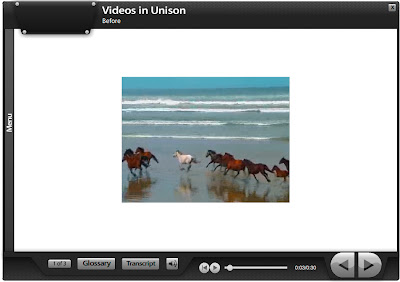
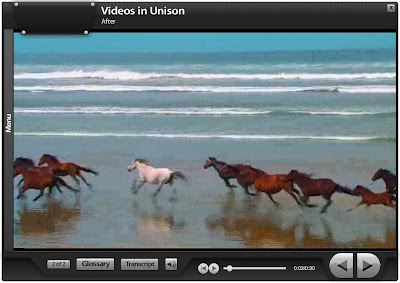
3. Upload to Unison: Now you are ready to upload the video to your Unison Media Manager for use in your course. Since your video is already in .flv format, it won't need to be converted and should take up the entire staging area, like this:


Sunday, September 25, 2011

New Page Type Release: Visual Layout Page

Rapid Intake has released a beta version of a new page type. This new visual layout page type will allow you to combine media, such as text, video, audio, SWF, and notes, in new and and exciting ways. You can now choose which media elements you would like to use on a page, how many media elements to include, re-size the elements, and where to place each element on the page.

If you would like to learn more about this page type, please check out our wiki:
https://wiki.rapidintake.com/index.php/Working_with_the_Visual_Layout_Page

If you have any feature requests or notice any bugs, please feel free to note it here:

Wednesday, September 21, 2011

More Resources for Rapid Intake Customers

Have you been looking for a quick, but comprehensive guide to one of our eLearning or mLearning course authoring tools? Look no further!

Rapid Intake has released three PDF training guides on mLearning, ProForm, and Unison.

These PDF guides:
  • offer step by step instructions to building, testing, managing issues, and deploying a course
  • include images with the instructions
  • explain settings and options in the authoring tool
Click on the links to view the PDF training guides for the following authoring tools: