Wednesday, August 17, 2011

Using SoftSkills Pages in ProForm

Incorporating SoftSkills pages into your ProForm course is a great way to give your learners a chance to practice their skills in a simulation.

How It Works
Learners will be faced with a scenario, often with accompanying images and audio, and have to make a decision based on the options they are given. The choices that learners make will award (or deduct) points from their score and result in different subsequent scenarios and conclusions. At the end of simulation, learners can view all the choices that they made and receive feedback on each, as well as seeing the points earned for each choice and their final score.

What You Need
The SoftSkills pages run similarly to a choose-your-own-adventure book, with a scenario on each page and choices that follow and take the learner to new pages. Setting up the SoftSkills pages correctly means that the choices on each page link to another page and that each choice eventually leads to a conclusion. Every SoftSkills simulation must include the following pages:
  • Start Page: Every simulation will have ONE of these pages. There are up to four choices on the start page that will link the learner to additional pages.
  • Linked Pages: The amount of "linked pages" in your simulation depends on you! This is the page type that each of the four choices from the start page will go to. Every choice must lead to a "linked page" or a "last page."
  • Last Pages: Any time you wish to put an end to a string of choices, a "last page" must be used. This page type will end the simulation, give the learner feedback, and allow the learner to continue on to the rest of the course.
The image below is an example of a start page.
The image below is an example of a linked page. There are only two choices on this page, but you can have up to four.
The image below is an example of a last page.

All three of these page types ("start page," "linked page," and "last page") are built off the basic SoftSkills page, but you must change the settings in a very specific way for each one. The required settings for each page type is given below:

Start Page
Page ID: Type in the name of the page. This is the name that will appear in the table of contents.

Link ID: Optional. If another page links to this page, you will need to enter a link ID.

Content File: Do not change.

Load Percentage: 20

Frames per second: 12

Include in TOC?: Check this box. First click the lock, then click the box and click the lock again. This will ensure that your first page appears in the table of contents.

Show Review?: Leave this unchecked.

Hide Page?: Uncheck this box. Click the lock to open the field, click the box to uncheck it, then click the lock. This will ensure that the page is not hidden from the learner.

Hide Next/Back?: Check this box. By hiding the next and back keys, our learner won’t be able to skip over the simulation.

Step Text: Type in the text that you want the learner to read to start the scenario.

Step Audio/video: Optional. Click on the folder icon to browse for the file you want to use.

Step Image: Optional. Click on the folder icon to browse for the file you want to use.

Is This Start Page: Check this box since it is the first page of your simulation.

Is This Last Page: Leave this box unchecked.

Include Meter?: Check this box if you want your learner to see the meter that rates their responses.

Scenario Title: Type in the text that you want to appear as the heading at the top of the page during the simulation.

Failure Label: This is the text that appears on the negative side of the meter. Ex. Poor/bad

Success Label: This is the text that appears on the positive side of the meter. Ex. Great/Well Done

Total Possible Pts: The total points maximum that the learner can earn during the simulation.


Choice Tabs on the Start Page

Each of the choices from these tabs will appear on the scenario start page, immediately below the step text.

Choice n Text: The text the learner will read for this choice.

Choice n Audio: Optional. Click on the folder icon to browse for an audio file.

Choice n Point Value: Assign this choice a point value.

Choice Links To: Type in the Page ID of the "linked page" that this choice will take the learner to.

Choice n Feedback: This feedback will be received by the learner after the simulation has ended.


Linked Pages

Page ID: This Page ID needs to be typed in on the corresponding choice tab that leads to this page.

Link ID: Optional.

Content File: Do not change.

Load Percentage: 50

Frames per second: 12

Include in TOC?: Uncheck this box.

Show Review?: Uncheck this box.

Hide Page?: Check this box. This will ensure that the page does not appear in the table of contents.

Hide Next/Back?: Check this box.

Step Text: Type in the text that you want the learner to read.

Step Audio/video: Optional. Click on the folder icon to browse for the file you want to use.

Step Image: Optional. Click on the folder icon to browse for the file you want to use.

Is This Start Page: Uncheck this box since it is not the first page of your simulation.

Is This Last Page: Uncheck this box since it is not the last page of your simulation.

Include Meter?: Check this box if you want your learner to see the meter that rates their responses.

Scenario Title: Leave blank.

Failure Label: Leave blank.

Success Label: Leave blank.

Total Possible Pts: Leave blank.

Choice 1-4 Tabs: Fill out up to four choice tabs that will lead your learner to even more pages.


Last Pages

Page ID: This Page ID needs to be typed in on the corresponding choice tab that leads to this page.

Link ID: Optional.

Content File: Do not change.

Load Percentage: 50

Frames per second: 12

Include in TOC?: Uncheck this box.

Show Review?: Check this box. At this point the learner will receive a score and feedback for all the choices made during the simulation.

Hide Page?: Check this box. This will ensure that the page does not appear in the table of contents.

Hide Next/Back?: Uncheck this box. After completing the simulation, the learner will will click on the “Next” button to take them to the next part of the course.

Step Text: Type in the text that you want the learner to read.

Step Audio/video: Optional. Click on the folder icon to browse for the file you want to use.

Step Image: Optional. Click on the folder icon to browse for the file you want to use.

Is This Start Page: Uncheck this box since it is not the first page of your simulation.

Is This Last Page: Check this box since it is not the last page of your simulation.

Include Meter?: Check this box if you want your learner to see the meter that rates their responses.

Scenario Title: Leave blank.

Failure Label: Leave blank.

Success Label: Leave blank.

Total Possible Pts: Leave blank.

Choice1-4 Tabs: Leave blank.


Your simulation is now complete!


Monday, July 18, 2011

Nominate Rapid Intake Tools for Best of Elearning!

The time has come for the
7th Annual Best of Elearning! Awards

WHAT? The Best of Elearning! Awards is a reader’s choice awards program for e-learning products and services. The 2011 ballot features many different categories, but this year we are inviting our customers to nominate Unison and mLearning Studio for the "Best Rapid Development Tool" and the "Best Mobile Learning Solution."

HOW? It is so easy!
  1. All you have to do is click on the link to go to the Best of Elearning! 2011 Ballot.
  2. Scroll down until you get down to category #10. Best Rapid Development Tool and #17. Best Mobile Learning Solution.
  3. Type in "Rapid Intake" for the company field and "Unison" or "mLearning Studio" for the product, depending on which you use. Type in what it is that you like most about the products. This may include: collaborative development, Flash and/or HTML5 publishing without having programming experience with either one, integrated REVIEW features, and the selection of content (learning games, quizzes, tests and more).
  4. Scroll down to the very bottom and fill in the Ballot Validation information (Customer name, company name, etc.) and click on "Submit."
WHEN? Ballots are accepted NOW and until August 1st.

Thank you for your support and votes! As always, we at Rapid Intake will continue to bring our customers the best in eLearning.

Thursday, July 7, 2011

Deploying Your Course In Unison

After you have finished testing and managing any issues involved with your project, you are ready to deploy your course for the use of your learners.

1. After logging in, locate the project you are ready to deploy from the "My Projects" tab. Click on the purple circle with the arrow to the right of the project name.
If you are already viewing your project from the "Project Home" tab, you can click on the "Deploy The Course" icon.
2. At this point you have to decide on the form of deployment: either your learners will access the course from your website or LMS, or you will provide them a public link to the course that is located online on Unison. Instructions for both forms of deployment are given below.

The Differences between the Forms
  • If you decide to deploy the course to your website or your LMS, you will actually end up with a file that you will later have to transfer to your website or LMS. The advantage of having your course on the LMS is that your LMS will receive data about the progress of your learners during the course.
  • If you decide to send your learners a link to the course on Unison, the only way you will receive data about your learners is if you have allowed them the option of emailing you their scores. Otherwise they will navigate and complete the course without you receiving any information.

To deploy this course to a website or your LMS
1. If you decide to download the file for future upload to your website or LMS, click on the "Download" tab.

2. Select the format of your course in the pull down tab. You have the option of flash, mobile, or flash & mobile compatible.

3. Click on the pull down tab next to "Publish Method" to select the location to which you will publish, either a "generic Web Server" or "LMS."

4. Hit download.


5. Transfer the file to your website. The course will now appear on your desktop as a file. This file is ready to be transferred to your LMS or your website.


To create a public link to your course
(located online at Unison)

1. Click on the public link tab instead of the download tab.

2. Select the format of your course in the pull down tab next to "Publish Method." You have the option of flash, mobile, or flash & mobile compatible.

3. Hit Publish.

4. Copy the link that appears directly below the "Publish" icon.

5. Paste the link to your website or the email form given below the link. Add in the email addresses of your learners and hit send to email the link to them.

Adding a new user to an existing project

At some point during the development of your course, you may want to enlist the help of another person to add content, test the course, or help manage issues. You can add this person to your current project by adding a new user. If this person is not a "current user" at Rapid Intake, you will first need to get this person registered.

1. After logging in, click on the "Admin" tab at the top right. Under the "Users" heading, click on the link labeled "Add a User."
2.  Fill in the required information in each field and then select the level of the user (reviewer, developer, manager, or administrator) and click "Add User" at the bottom.
The new user can be seen if you click on "View/Update Users" under the "Users" heading.


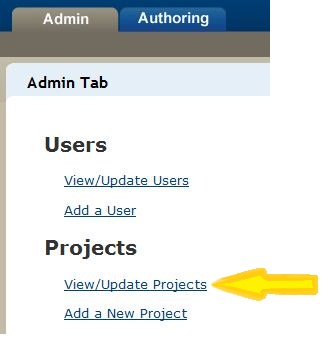
3. To add the new user to an existing project, click on the "Admin" tab. Click on "View/Update Projects" under the "Projects" heading.

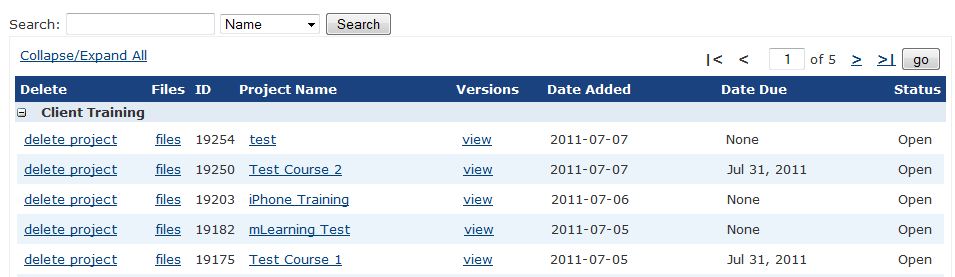
4. Locate and click on the project in the list of project names.

If you have a hard time finding your project, you can do a search for it if you know the name, ID, date added, or date due. Type in the name (or ID or a date) in the "Search" field and then use the pull down tab to select what type of information it is (name, ID, date added, or date due) and click on the "Search" icon.


5. Click on the project name in blue and underlined.

6. Locate the "assigned team members" heading on the left side of the screen.
7. Click on the "add/remove" link that is blue and underlined to the right of the "assigned Team Members.

8. Locate the user you want to add on the "User List" on the left and click on the name.

9. After the user name is highlighted in blue, click on the two arrows (>>) to add the name to the list of "Users Currently Assigned."

10. When you have all the new users you want added to the "Users Currently Assigned" list, click on the "Finished" icon.

Monday, June 20, 2011

Unison Version 5 - New Features

Rapid Intake would like to announce the official release of version 5 of Unison™, the online, collaborative e-learning authoring tool. We've implemented several feature requests, fixes, and several major changes that we would like to let you know about, so you can take advantage of them.

Multiple Account Levels

Unison now offers 3 different account levels for users to choose from, based on their needs. The feature differences and price for each level can be found on the Unison pricing page. As a thank you, all current Unison users who purchased before the price changes will receive a free upgrade to the Professional Premium level of Unison.

HTML5 (mobile) Publishing

All users now have the option to upgrade to the Ultra Premium level of Unison, which allows for publishing to HTML5 format. The new HTML5 publishing will allow courses to play on supported mobile devices, as well as on a desktop computer through a browser in Flash format. With the ability to publish courses to both Flash and HTML5, developers can host a course on their LMS that can be accessed from a computer or laptop by one learner, and a mobile device from another. Bookmarking works seamlessly so that if a learner accesses a course via desktop computer and leaves the course before finishing, they can visit the same course on the LMS with a mobile device and pick up where they left off.
with the Ultra Premium level of Unison, you can deploy courses to both Flash and HTML5 formats
Current users of Unison will receive a discount when upgrading to the Ultra Premium level of Unison. To find out more details about upgrading your account, please contact your account representative or a member of our sales staff.

New Documentation Wiki

All documentation for Unison, mLearning Studio and Review has been moved to the Rapid Intake Documentation Wiki, which can be accessed by clicking the "Support" link in your Unison account. The documentation wiki will allow members of the Rapid Intake support staff to maintain the documentation for these products more accurately.


New Deploy Page

To allow for HTML5 (mobile) and Flash joint deployment, the deploy page of Unison has been updated. You may now send public link via email directly in Unison. The deployment tabs have also been redesigned to be more intuitive and user-friendly.

Tuesday, May 10, 2011

13 Free Tools to Create eLearning Media Content

I recently did a webinar titled "13 Free Tools to Create eLearning Media Content". It was really well received and I wanted to share it on the blog. These tools greatly compliment our authoring tools. If you need to create images, audio, video or other type of media then you will want to check out these tools and the best part is they are free! Here is a link to watch the webinar:

http://www.rapidintake.com/webinars/FreeToolsWebinar/

Here are the tools and the websites I cover in the session. As a bonus, I actually threw in a 3 more tools to make it 16 free tools:

Video Production:
JayCut - Online Video Editor
VideoSpin By Pinnacle - Desktop Video Editor

Video Conversion:
Any Video Converter - Desktop Video Conversion
NCH Software - Desktop Video Conversion

Audio Production:
Audacity - Desktop Audio Editor
Aviary Myna - Online Audio Editor
Aviary Roc - Online Audio Creator

Image Editor:
GIMP - Desktop Image Editor
Aviary Phoenix - Online Image Editor

Image Capture:
Jing - Desktop Image Capture
Aviary - Online Desktop Image Capture

Vector Image Editor:
Inkscape - Desktop Vector Image Editor
Aviary - Online Vector Image Editor

Color Scheme:
Kuler - Desktop/Online Color Scheme Picker
Aviary - Toucano Color Scheme Picker

Course Analytics:
Enspark enfuse - Online Course Analytics (This was previously free but lowest plan is $19/month. Still a great deal!)

Hopefully that helps in your course content production. Do you know of any free tools that we didn't mention? Please share them in the comments below.

Wednesday, April 6, 2011

How to create a interactive Millionaire Game using the Rapid SWFMaker

The Rapid SWFMaker makes you look awesome with very little effort. While there are many different interactions you could build using this tool I want to focus just one game for this post.

We're all familiar with watching Who Wants To Be A Millionaire at home, trying to guess the answers ourselves and feeling that roller coaster of emotion as we won and lost.Why not use that same emotion to help your students learn? If you can attach emotion to learning then you increase retention, and interactive games are a good way to do that. Let's walk you through how to build this game.

1. Login to your SWFMaker account

The first thing you want to do is log in to your own account. If you do not have a login you can contact any sales rep by emailing sales@rapidintake.com.

2. Click on "Create New Interaction" or "Interaction Editor"

To start a new interaction in Rapid SWFMaker you want to make sure you click on either "Create New Interaction"
or "Interaction Editor" on the top left hand side of the screen.


This will take you to the new interaction area. You will see a list of all the different kinds of interactions you can build. Find the one labeled "Game - Millionaire Challenge".

Hover over that image and then click on "Create Now".

3. Input Content

This will take you to the next step. This step is called "Input Content". Just as the label describes, this is where you input your content for this interaction. You go through each section in this area and make sure all of it is filled out.


The first section is the introduction. As you can see, it will automatically populate some text for you. At this point you may think to yourself, "Well, that was easy", and it was! You can modify the introduction if needed, or just go on to add audio now at the bottom of the main screen. This step is optional, so you are not required to add audio to play during the intro.

The next section is filling out the form for Question 1. When you go to this section you will see five tabs. The first tab is for the question, the next four tabs are for the four possible answers. Go through each of these tabs filling out the correct answer and possible distractors. Keep in mind that you can type out your question and attach audio to each question.

When you are finished with Question 1 go through the remaining questions in the Input Content area. You have to have fifteen questions and one conclusion in order for the game to function correctly.

4. Publish

With other interactions you can usually change and customize your own theme. With the games, however, you cannot change the themes so you can skip the "Select Theme" and "Settings".

Now that you have all your content entered in you can download the interaction by clicking "Download" on the top right. Or if you prefer, "Save" to save it for later use.

It will then ask you to download the SWF to your desktop.

Once you have downloaded the SWF you can preview it or place it on a website or inside of any course authoring tool like Lectora, Articulate, Captivate, Unison or ProForm.


If you have any questions please feel free to leave a comment or contact us at support@rapidintake.com.